Workspace settings
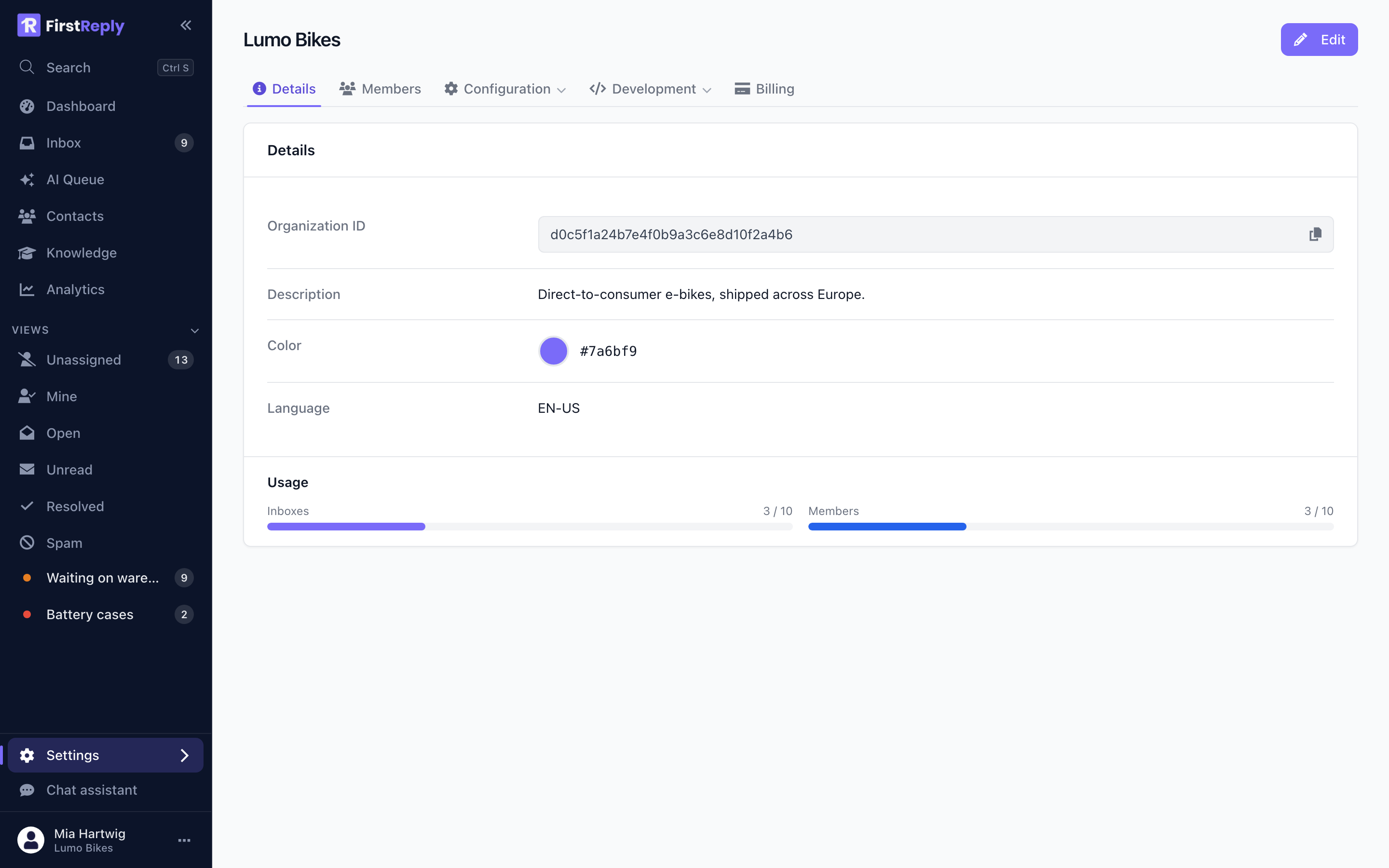
Open Settings → Organizations and pick your workspace. The Details tab holds what the workspace is; the tabs beside it hold what it is made of.
Changing these needs the Manager role or higher.
Details
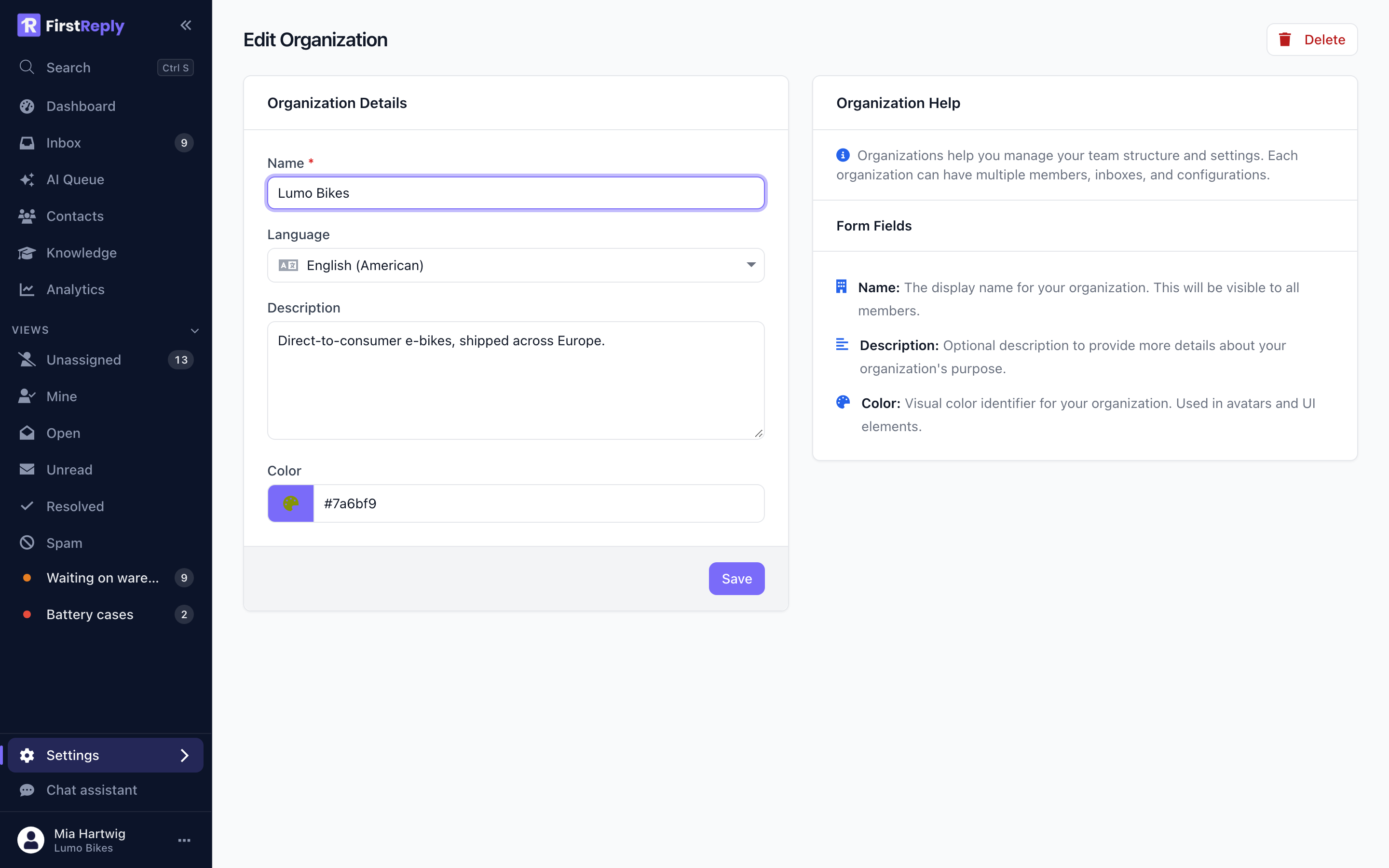
Name — shown in the app and in the emails your team receives. Not shown to customers.
Description — internal note. Useful when someone belongs to several workspaces.
Colour — the workspace's accent in the switcher.
Language — the workspace's default language. It is a fallback: the assistant answers in whatever language the customer wrote in, and each team member sets their own interface language in their profile.
AI settings
Identity prompt — who the assistant is and how it writes.
Behaviour prompt — the rules that apply to every reply.
Both are covered in detail, with worked examples, under Prompts.
Automatic classification — when off, conversations arrive unclassified and your team files them by hand. The assistant still drafts and answers where you ask it to; it stops sorting. Most workspaces leave this on.
Automatic close by inactivity
Closes conversations that have had no activity for a number of days. Zero disables it.
Fourteen days is a reasonable starting point. It catches the threads that end without an ending — the customer got their answer and stopped writing — without closing anything genuinely in flight.
A closed conversation reopens automatically if the customer writes again, so the risk of setting this too low is annoyance rather than loss.
Configuration
The Configuration menu holds the parts of the workspace that have their own pages:
| Section | Covered in |
|---|---|
| Inboxes | Channels |
| Knowledge | The knowledge base |
| Classifications | Classifications |
| Prompts | Prompts |
| Templates | Templates |
| Contact fields | Custom fields |
| Email notifications | Notifications |
Development
The Development menu holds webhooks, API keys and a link to the API reference.
Billing
The Billing tab holds the plan, its limits and the invoices. See Subscription.
Plan limits
Your plan caps the number of inboxes and members. When you reach a cap, the button to add another explains what is in the way instead of failing on save.