A tour of the interface
Five minutes on where everything is.
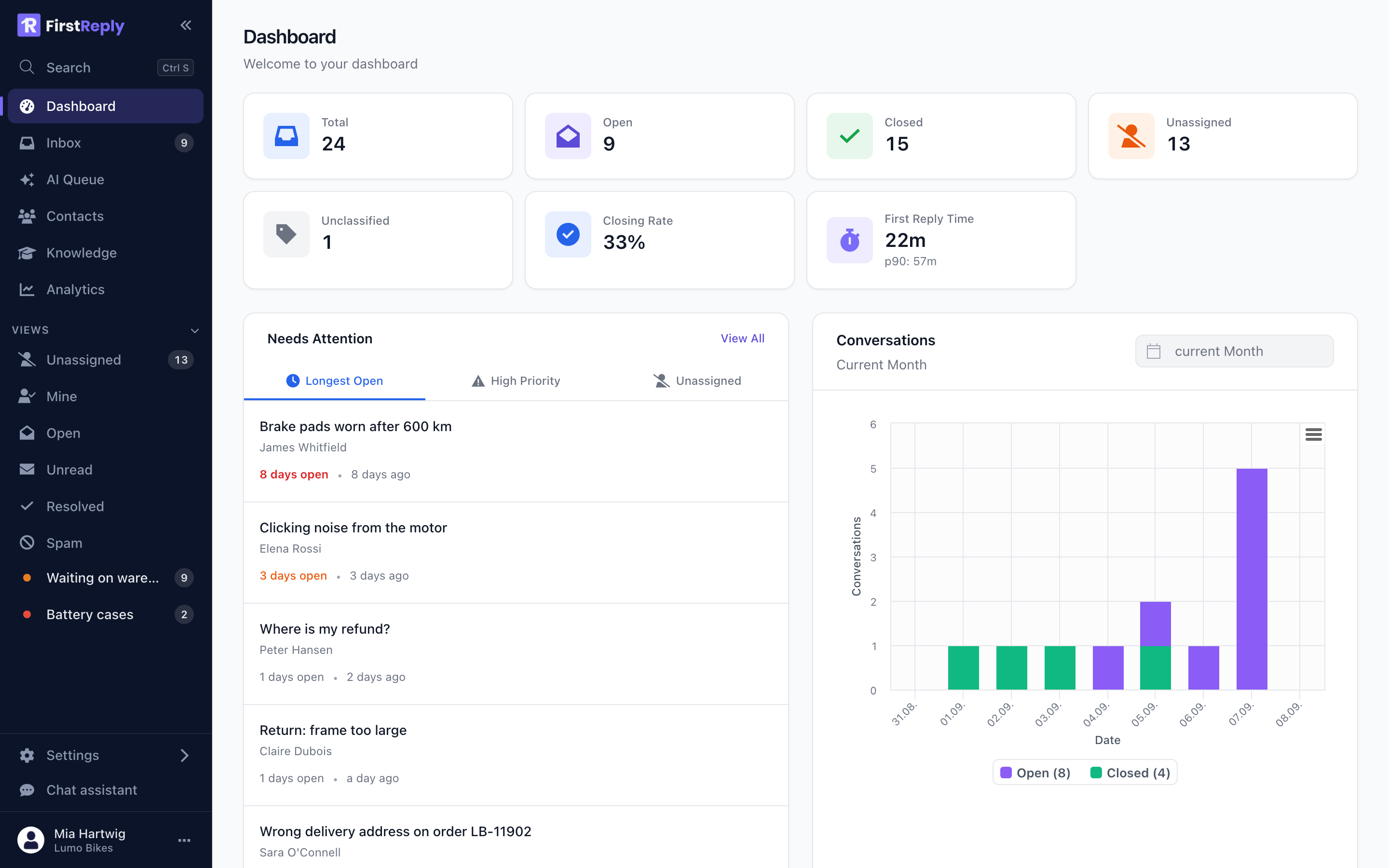
The sidebar
Search — the global palette. It searches conversations, messages, contacts
and knowledge at once. Ctrl S opens it from anywhere.
Dashboard — the state of the queue right now: totals, what needs attention, and volume over time. See Dashboard.
Inbox — the conversation list. The badge counts open conversations. See The inbox.
AI Queue — the conversations that need a human, grouped by why. The badge counts them. See The AI Queue.
Contacts — the people who have written to you, with their history and your custom fields. See Contacts.
Knowledge — the sources and articles the assistant answers from. See The knowledge base.
Analytics — closing rate, first reply time, how much the AI is handling and how customers feel about it. See Metrics.
Views
Under Views sit the standard slices — Unassigned, Mine, Open, Unread, Resolved, Spam — and any filter you saved yourself, with its own colour and counter. See Views and filters.
At the bottom
Settings opens the configuration navigation: organizations, inboxes, templates and prompts.
Chat assistant opens an assistant that answers questions about your own workspace.
Your name shows the workspace you are in. Click it for your profile, to switch workspace, or to sign out.
The three main screens
Dashboard
Numbers at the top, conversations needing attention on the left, volume over time on the right. It is the screen for "how are we doing", not the screen you work in.
Inbox
Three columns: navigation, the conversation list, the conversation. The list stays mounted as you move between conversations, so stepping through a queue is instant.
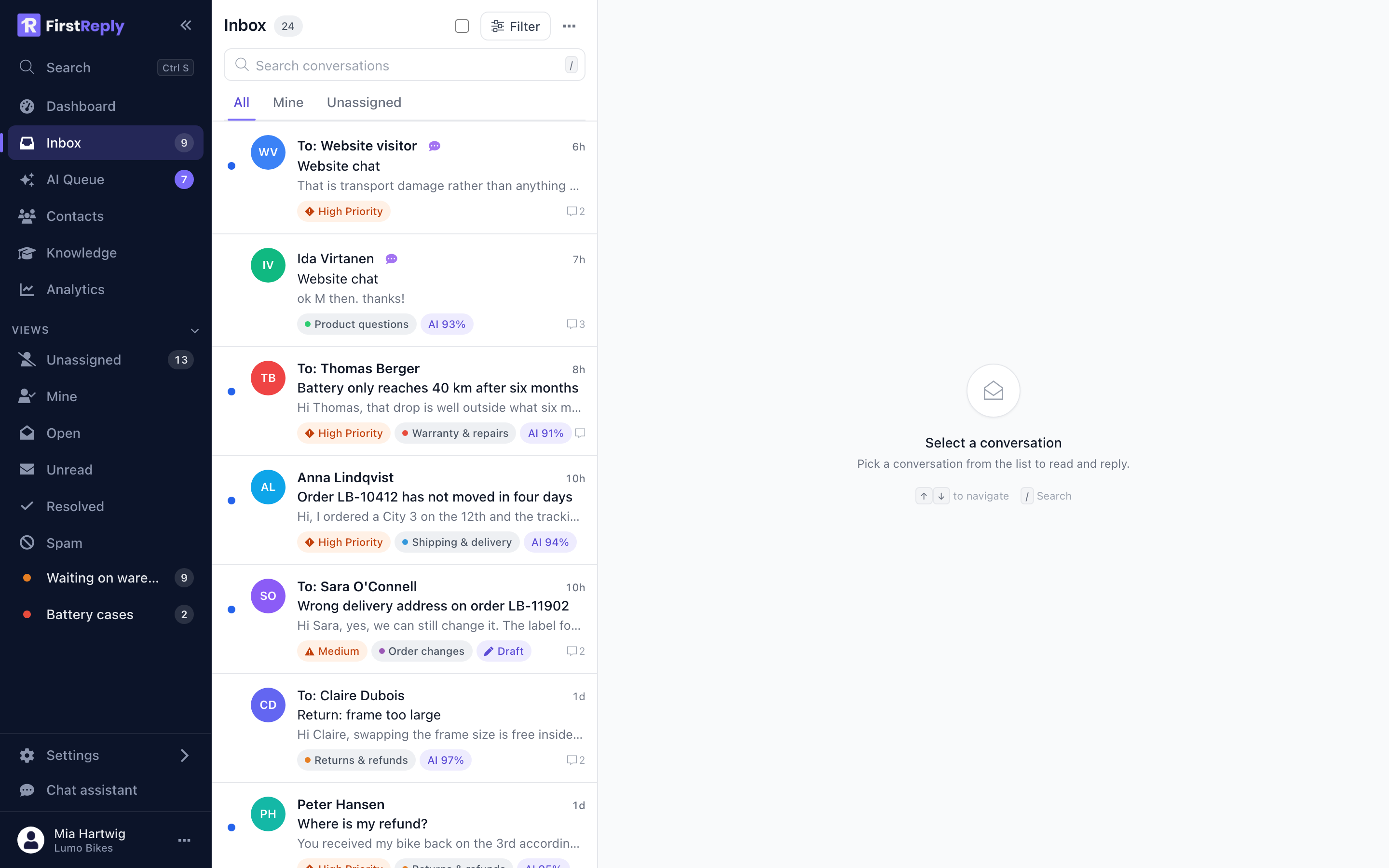
A conversation
Header with the contact and their custom fields, AI summary, message history, reply editor. See Reading and replying.
Keyboard shortcuts
| Key | Action |
|---|---|
Ctrl S | Global search |
/ | Search within the conversation list |
↑ ↓ | Move through the list |
Esc | Close the current panel or dialog |
Light and dark
FirstReply follows your operating system's appearance and can be switched by hand from the menu next to your name. Nothing else changes with it.
Language
The interface is available in English and German, and follows the language set in your profile. It is per person, not per workspace: your colleague can work in German while you work in English, in the same inbox.
The language of your replies is separate. The assistant answers in whatever language the customer wrote in, regardless of your interface language.