Your workspace
A workspace — organization in the interface — is the container for everything: channels, conversations, contacts, the knowledge base, the classifications, the team and the subscription.
Data does not cross between workspaces. A conversation in one is invisible from the other, and so is its knowledge base.
One workspace or several
Most companies need exactly one. Use a second only when the separation is real:
One workspace when your team answers everything, even across several brands. Channels, classifications and views are enough to keep things apart inside a single workspace, and one knowledge base serving one team is easier to keep good than two half-maintained ones.
Several workspaces when different people handle different products and should not see each other's conversations, when two brands need genuinely separate knowledge bases, or when an agency handles several clients.
The cost of splitting is real: separate knowledge bases, separate classifications, separate settings, and a team that has to switch between them. Do not split for tidiness.
Switching
The workspace you are in is shown at the bottom of the sidebar under your name. If you belong to more than one, switch from there. The whole app follows: the inbox, the contacts, the knowledge base.
Settings
Workspace settings live under Settings → Organizations → your workspace.
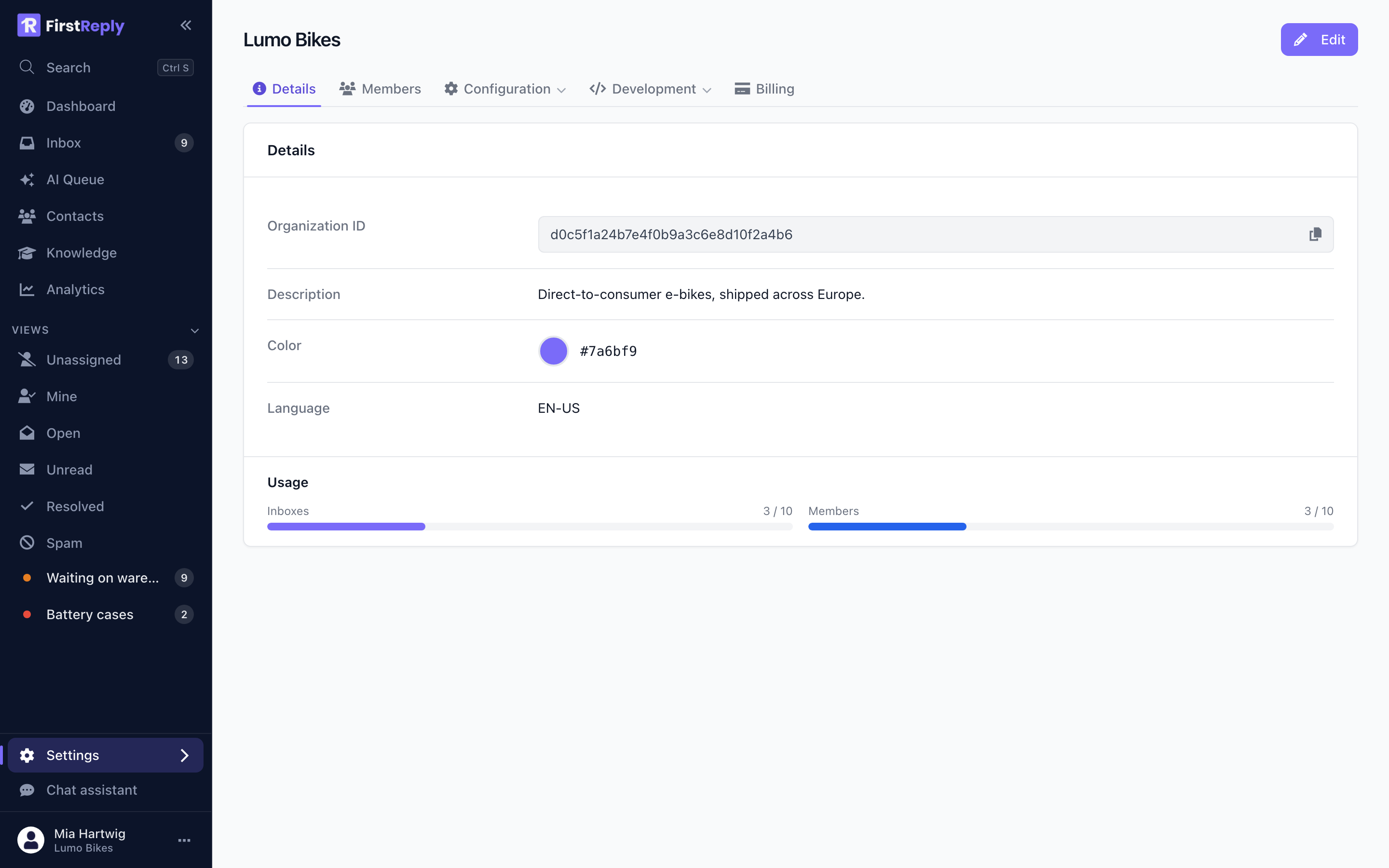
The details tab holds the name, description and colour. The tabs beside it hold the members and, under Configuration, everything the workspace is made of: inboxes, knowledge, classifications, prompts, templates, contact fields and notification settings.
Workspace settings covers each of those.
Plan limits
Your plan sets how many inboxes and how many members a workspace may have. When you reach either limit, the button to add another explains what is in the way rather than failing on save.
Raising a limit is a plan change; see Subscription.
Deleting a workspace
Deleting a workspace removes its conversations, contacts and knowledge base. This cannot be undone, and the owner is the only role that can do it.
If the goal is to stop paying rather than to erase everything, cancel the subscription instead. The data stays and the workspace becomes read-only.