The inbox
The inbox is the screen your team lives in. Every message from every connected channel arrives here as a conversation, and the channel it came from is a detail rather than a separation: an email and a website chat sit in the same list and are handled the same way.
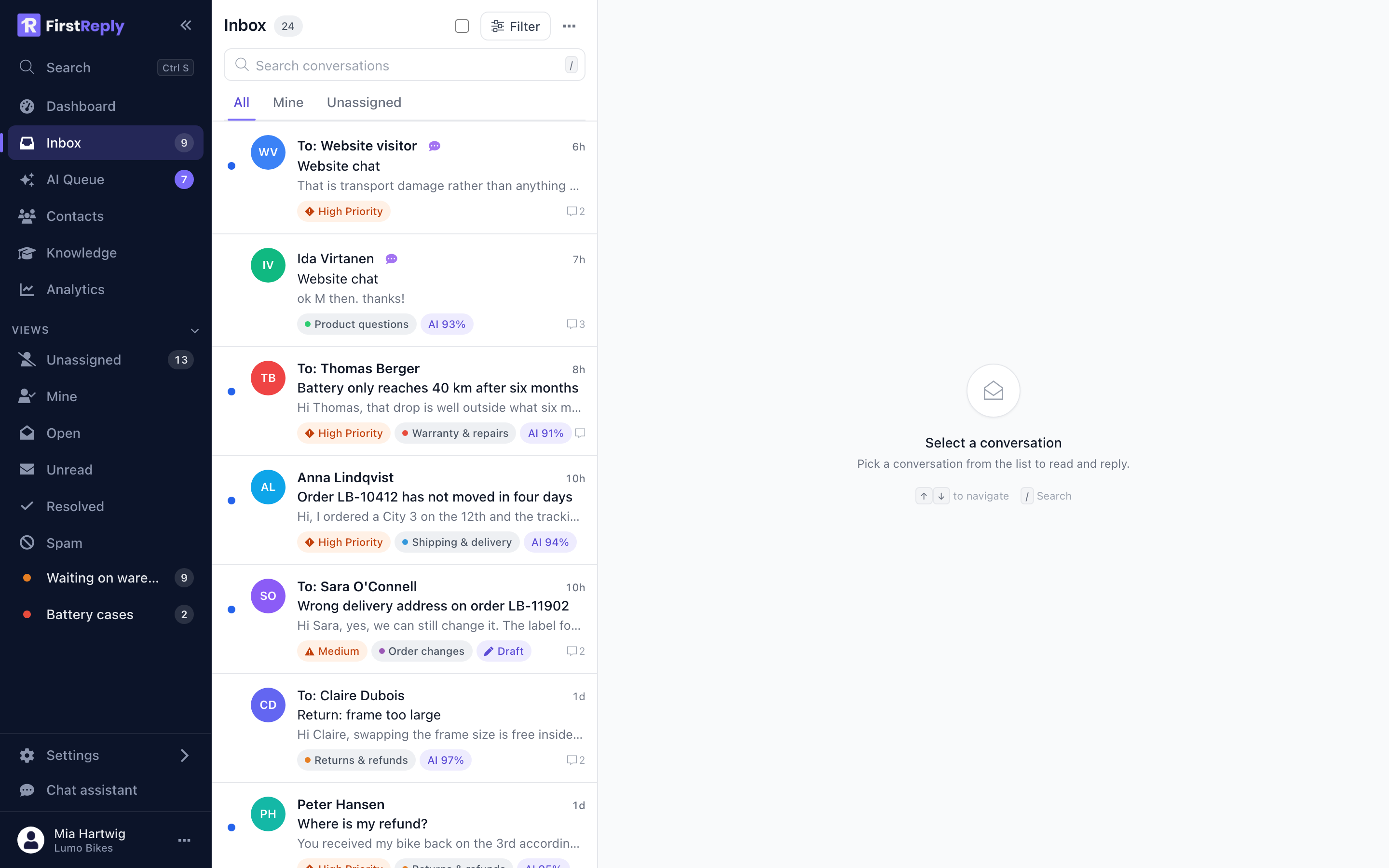
Layout
The screen has three columns.
The navigation sidebar on the left carries the main sections (Dashboard, Inbox, AI Queue, Contacts, Knowledge, Analytics) and, under Views, the saved slices of the inbox. The number next to Inbox counts open conversations, the one next to AI Queue counts conversations that need a human.
The conversation list in the middle shows one row per conversation, newest activity first. The tabs above it (All, Mine, Unassigned) are the three filters you switch between most often.
The conversation on the right opens when you select a row. It holds the whole message history, the AI summary and the reply editor. Reading and replying covers that column in detail.
What a row tells you
Each row in the list is dense on purpose. From top to bottom:
- The contact and, when the last message was sent by your team, a
To:prefix in front of their name. A row without the prefix is waiting on you. - A channel icon next to the name for anything that is not email.
- The subject, or the channel name for chat-style conversations that have no subject.
- A preview of the most recent message.
- Badges: priority, classification, the AI's confidence in that
classification, and
Draftwhen a reply is prepared but not sent. - A blue dot on the left for unread, and a message counter on the right.
Views
The Views section of the sidebar holds the standard slices plus any filter you saved yourself.
| View | Shows |
|---|---|
| Unassigned | Open conversations with nobody responsible yet |
| Mine | Open conversations assigned to you |
| Open | Everything not closed, assigned or not |
| Unread | Conversations nobody on the team has opened |
| Resolved | Closed conversations |
| Spam | Everything filed as spam, kept out of every other view |
Below those sit your saved filters. Any filter you build can be saved as a view with its own name and colour, and it then behaves like the built-in ones, counter included. See Views and filters.
Statuses
A conversation is in one of three states.
Unread — nobody on the team has opened it. Shown with a blue dot.
Read — someone opened it. Still open work: it stays in the Open view and counts towards the Inbox badge.
Closed — done. It leaves the open views and moves to Resolved. A new customer message on a closed conversation reopens it automatically, so closing is never a way to lose a thread.
Closing is recorded with who closed it and why: manually by a person, automatically by the assistant after it answered, or by the inactivity rule your workspace configures under Workspace settings.
Priority
Priority runs from Normal through Low, Medium, High and Critical. It is set by hand, or automatically when the assistant hands a conversation over because it could not answer.
High and Critical conversations appear in the AI Queue under Urgent and in the dashboard's High priority tab, which is the point of setting it.
Assignment
Assigning a conversation makes one person responsible. An unassigned conversation belongs to everyone, which in practice often means nobody, so the Unassigned view exists to keep that visible.
Assign from the conversation header or from the list with a multi-select. A classification can also assign automatically: give it a default assignee and every conversation it matches lands with that person. That is the usual way to route warranty cases to whoever handles warranties.
Keyboard
The list is fully keyboard-navigable, which is faster than it sounds once the queue is long.
| Key | Action |
|---|---|
↑ ↓ | Move through the list |
/ | Focus the conversation search |
Ctrl S | Open the global search palette |
Esc | Close the current panel or dialog |