Inviting your team
FirstReply is a shared inbox, which only pays off once more than one person is in it. Invitations are the first thing to do after a channel is connected.
Inviting someone
Open Settings → Members and add a member.
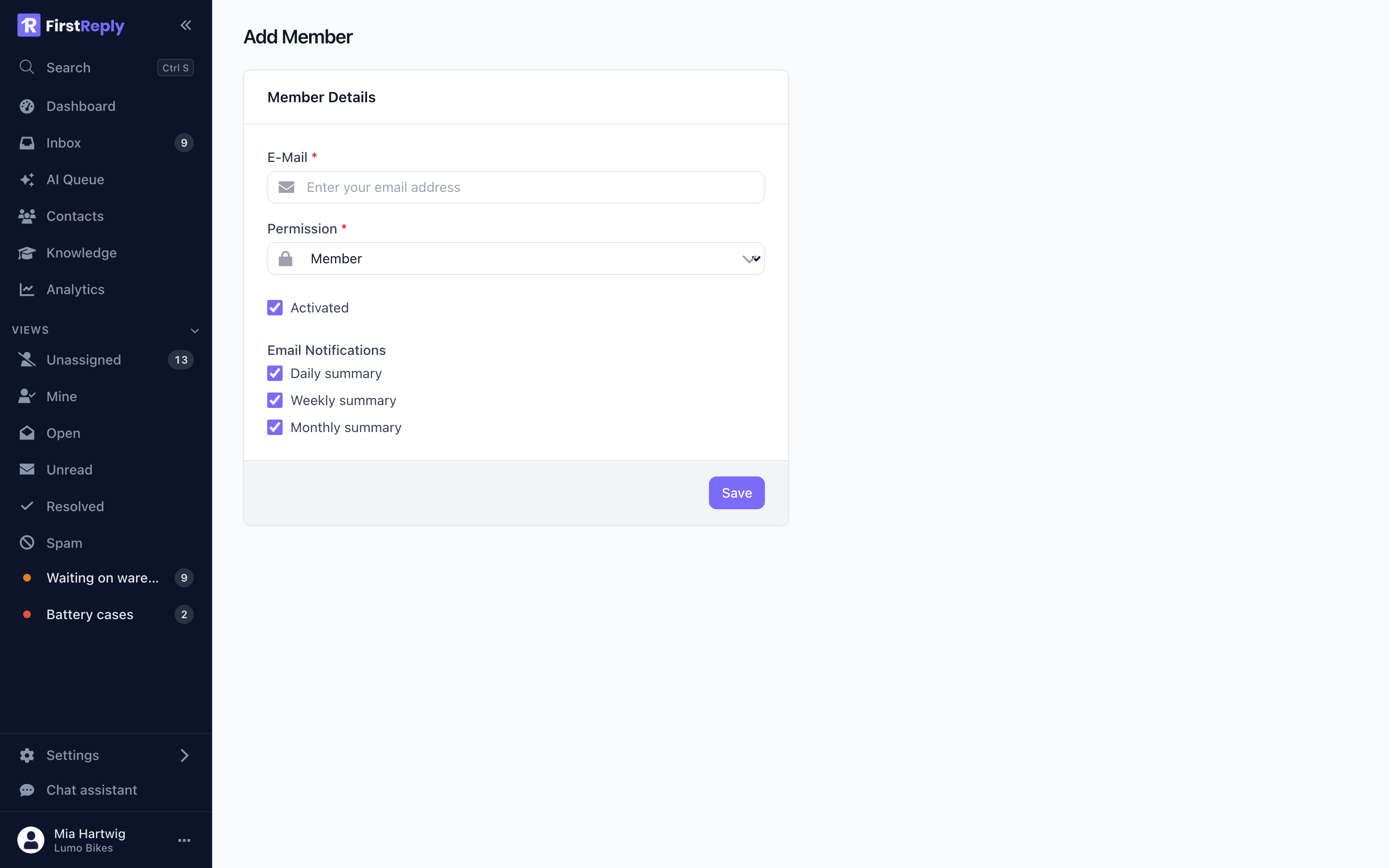
Enter their email address and pick a role. They receive an invitation; when they accept, they join the workspace. If they do not have a FirstReply account yet, accepting creates one.
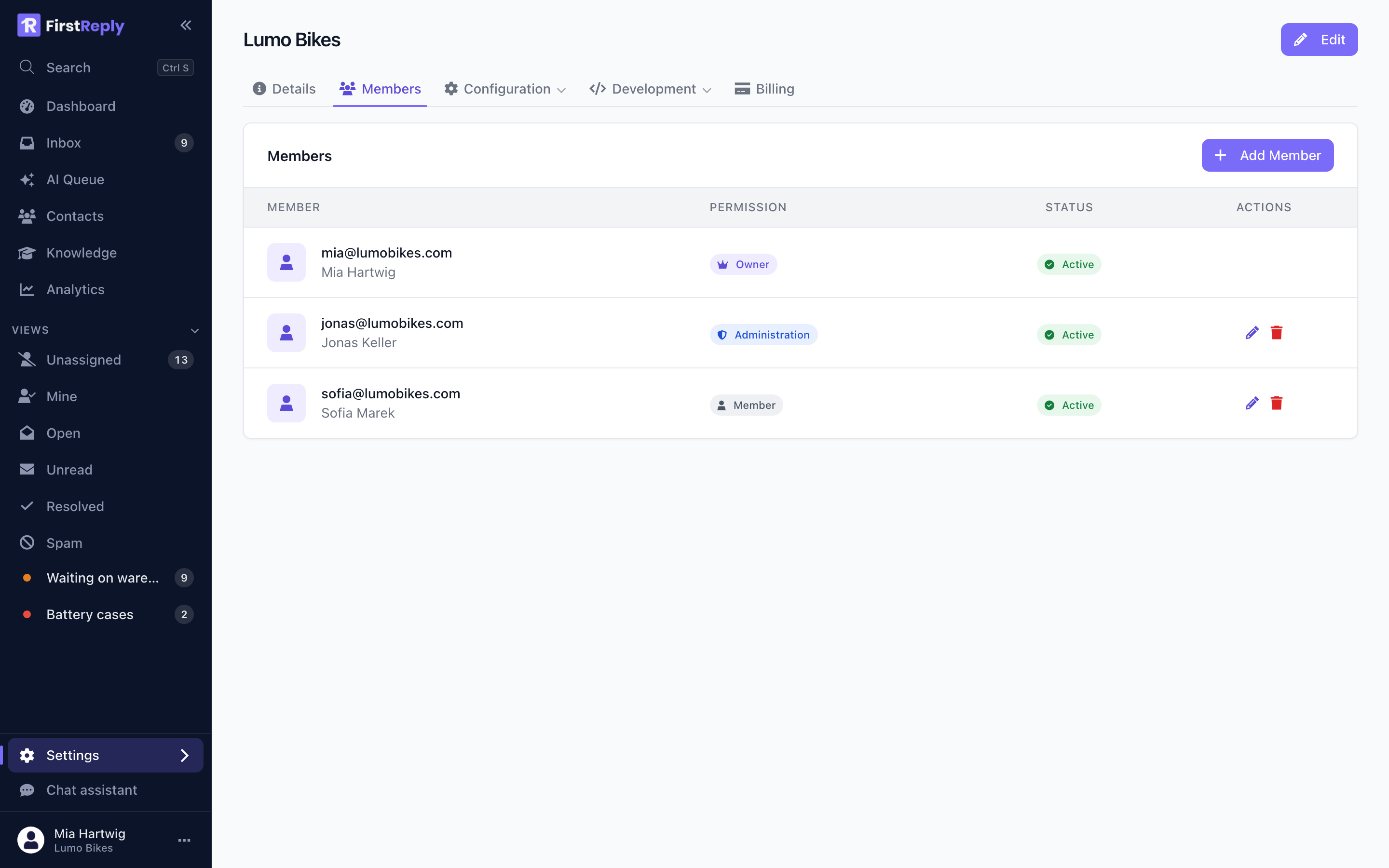
The member list shows who has accepted and who is still pending. A pending invitation can be resent or withdrawn.
Which role to give
| Role | Can do |
|---|---|
| Member | Read and answer conversations, manage contacts |
| Manager | Everything a Member can, plus configure channels, classifications, knowledge, templates and prompts |
| Admin | Everything a Manager can, plus manage members and API keys |
| Owner | Everything, plus billing and deleting the workspace |
Give agents Member. Give the people who tune the AI and the knowledge base Manager. Keep Admin to the one or two people who actually administer the workspace.
There is exactly one Owner: whoever created the workspace. See Members and roles for transferring it.
Assignment and routing
Once several people are in the workspace, decide how work is divided:
Pull. Everyone works the Unassigned view and assigns to themselves as they pick a conversation up. Simple, and it works well up to a handful of people.
Push. A classification carries a default assignee, so conversations in that category land with a specific person automatically. Right where specialisation is real — the person who handles warranty cases should get warranty cases.
Most teams use both: automatic routing for the specialised categories, the Unassigned view for everything else.
Notifications
Each member controls their own email notifications in their profile, and the workspace controls the daily, weekly and monthly summaries. See Notifications.
Point new members at their profile on day one, so they are not either flooded or silent.
Removing someone
Removing a member takes away their access immediately. Their conversations stay in the workspace, and the ones assigned to them become unassigned rather than disappearing — so nothing is lost when somebody leaves.