Security
A FirstReply account can read every conversation in its workspaces, which includes whatever customers put in them. It is worth a few minutes of protection.
Two-factor authentication
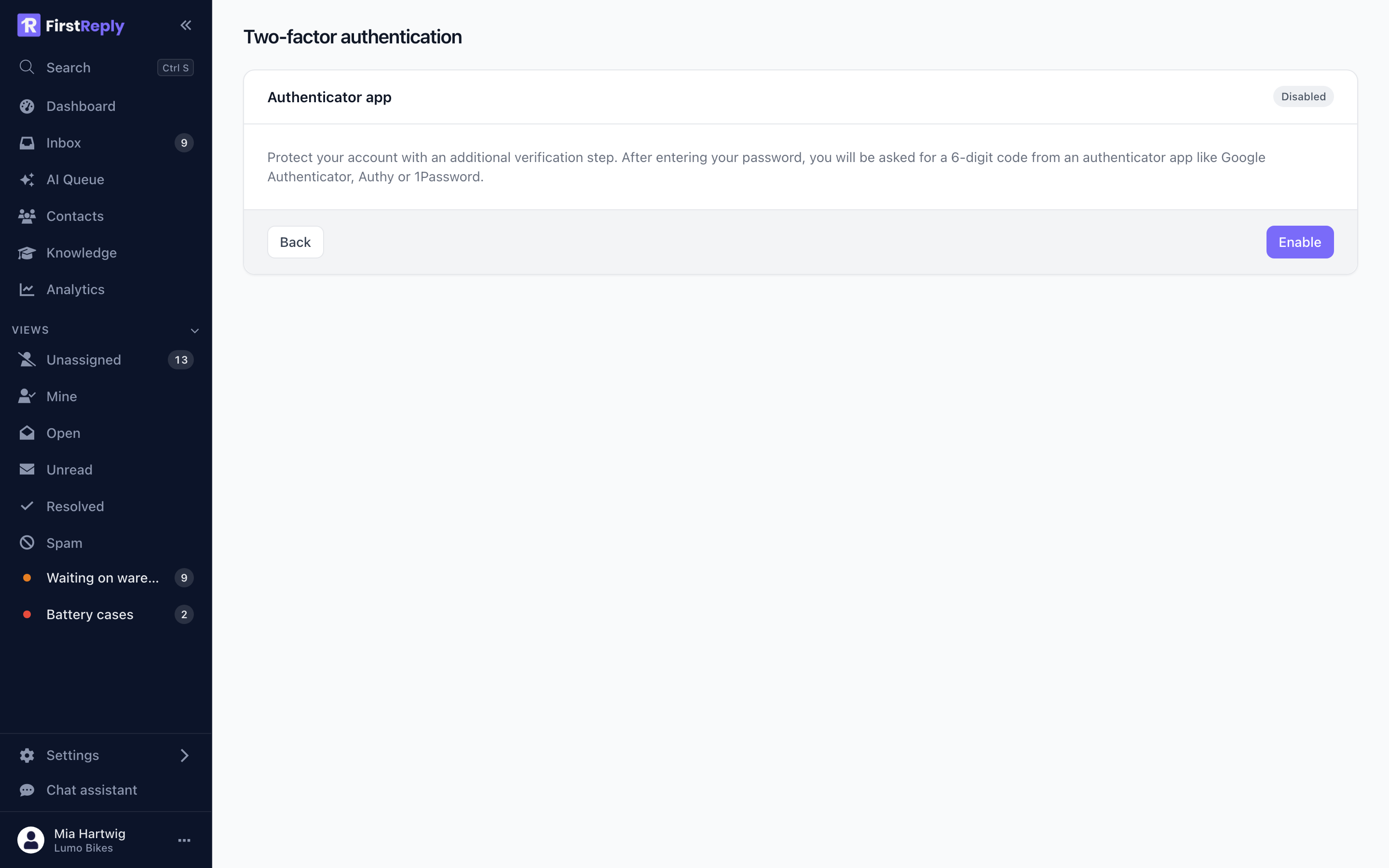
Enable it under Profile → Two-factor authentication.
- Scan the QR code with an authenticator app — 1Password, Authy, Google Authenticator, or your password manager.
- Enter the six-digit code to confirm the app is set up correctly.
- Save the recovery codes. Store them where you keep other credentials, not in the same authenticator app.
After that, signing in asks for a code from the app after your password.
Recovery codes
Recovery codes are the way back in when you lose the device with the authenticator app. Each one works once.
They are shown once, when 2FA is enabled, and cannot be displayed again — only regenerated, which invalidates the old set. Save them at the moment they are shown.
Without a recovery code and without the authenticator app, the account can only be recovered through support, and that is a slow path by design.
Turning it off
Disabling 2FA needs your password and a current code. It invalidates the recovery codes, so re-enabling later gives you a fresh set.
Sessions
Signing in creates a session that is refreshed while you use the app. Signing out revokes it on the server, not just in the browser.
Changing your password signs out your other sessions, which is the fastest response if you think a session has been compromised.
How credentials are stored
Your password is hashed with bcrypt. It is never stored or logged in a form that can be reversed.
Channel credentials — mailbox passwords, OAuth tokens, App Store private keys — are encrypted before storage. Once saved, a secret is never sent back to the browser: editing an inbox leaves the password field empty rather than pre-filling it.
API keys are stored as a hash. The secret is shown once on creation and never again, which is why losing one means creating a new one rather than looking it up.
Website chat
The website chat widget key is public by design: it sits in your page source. It identifies which workspace the widget belongs to and can do nothing else.
The domain allowlist is what stops the key being used from somebody else's site. Set it before going live.
Each chat conversation carries its own signed token, so one visitor's session cannot reach another's.
For workspace admins
Review members quarterly. Remove people who have left. This is the most common gap.
Review API keys. The list shows when each was last used; delete the ones nothing uses.
Keep Admin small. Two is usually the right number.
Give each integration its own API key, so one can be revoked without breaking the others.