Members and roles
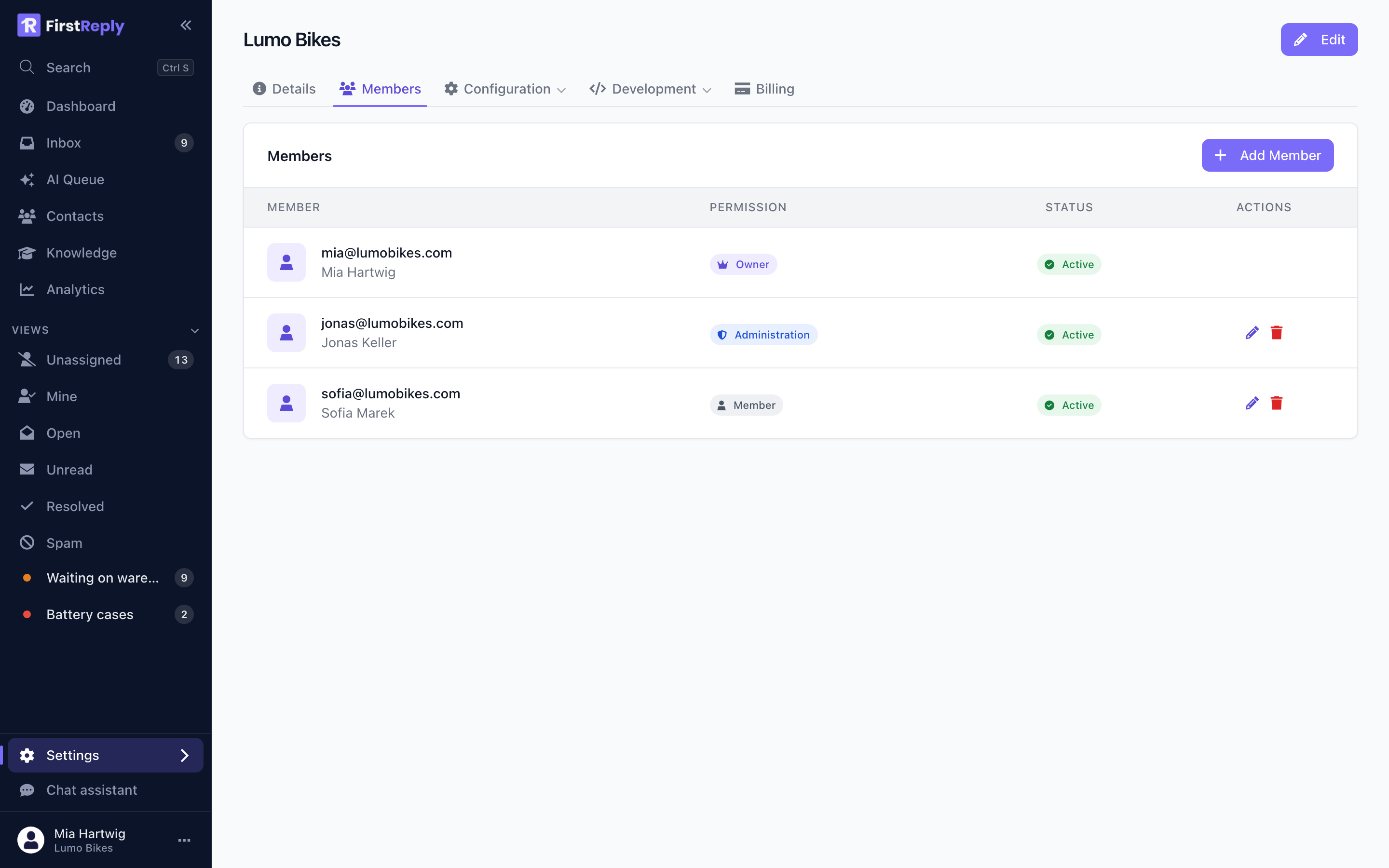
Manage the team under Settings → Members. Inviting and changing roles needs the Admin role.
The roles
| Member | Manager | Admin | Owner | |
|---|---|---|---|---|
| Read and answer conversations | ✓ | ✓ | ✓ | ✓ |
| Assign, classify, close, mark spam | ✓ | ✓ | ✓ | ✓ |
| Create and edit contacts | ✓ | ✓ | ✓ | ✓ |
| Save personal views | ✓ | ✓ | ✓ | ✓ |
| Configure inboxes and channels | ✓ | ✓ | ✓ | |
| Manage knowledge sources and articles | ✓ | ✓ | ✓ | |
| Manage classifications, prompts, templates | ✓ | ✓ | ✓ | |
| Manage contact fields and webhooks | ✓ | ✓ | ✓ | |
| Edit workspace settings | ✓ | ✓ | ✓ | |
| Invite and remove members | ✓ | ✓ | ||
| Manage API keys | ✓ | ✓ | ||
| Billing and subscription | ✓ | |||
| Delete the workspace | ✓ |
Member
The role for agents. They do the actual support work and cannot change the configuration underneath it.
This is the right default. Someone who only answers conversations gains nothing from being able to edit classifications, and a workspace where everyone can change everything drifts.
Manager
Member, plus the configuration: channels, knowledge, classifications, prompts, templates, contact fields, webhooks.
Give it to the people who tune the AI and maintain the knowledge base. In small teams that is often the same one or two people who also answer the hard conversations.
Admin
Manager, plus the team and API keys. Two Admins is usually right: enough that nobody is blocked when one is away, few enough that the responsibility is real.
Owner
Everything, plus billing and deleting the workspace. There is exactly one, and it is whoever created the workspace.
Inviting
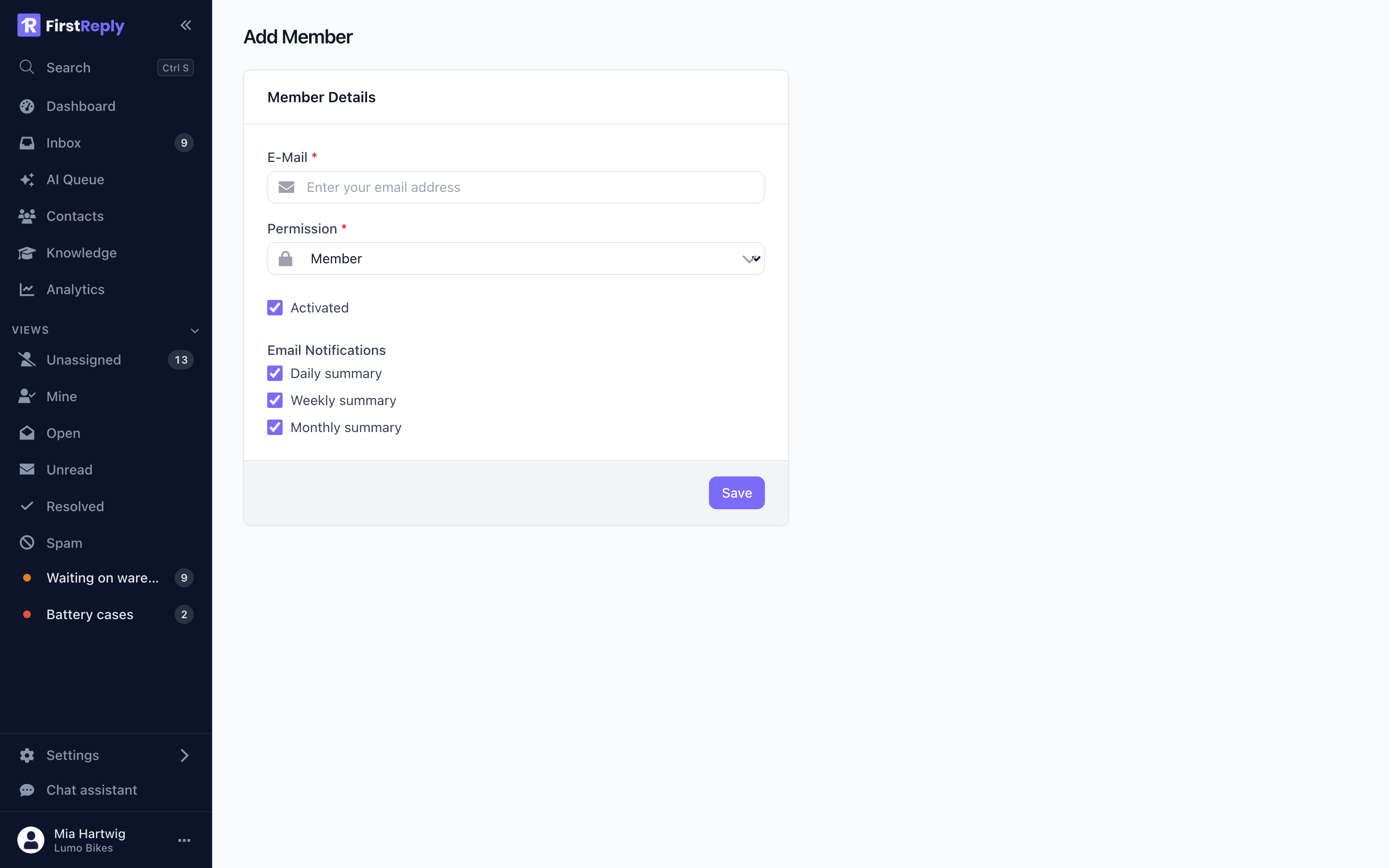
Enter the email address and pick a role. The person receives an invitation and joins when they accept; accepting creates a FirstReply account if they do not have one.
The member list shows who has accepted and who is still pending. Pending invitations can be resent or withdrawn.
Changing a role
Change a role from the member list. It takes effect immediately — the person does not need to sign out and back in.
Removing someone
Removing a member revokes their access at once. Their conversations stay in the workspace, and the ones assigned to them become unassigned rather than disappearing.
Do this on the day someone leaves. It is the only action here that is time-sensitive.
Transferring ownership
The Owner can hand ownership to another Admin. The previous Owner becomes an Admin. Do this before the current Owner leaves the company, not after: a workspace whose Owner no longer has access can only be recovered through support.