Reading and replying
Selecting a conversation opens it in the right-hand column. This is where the actual work happens.
The header
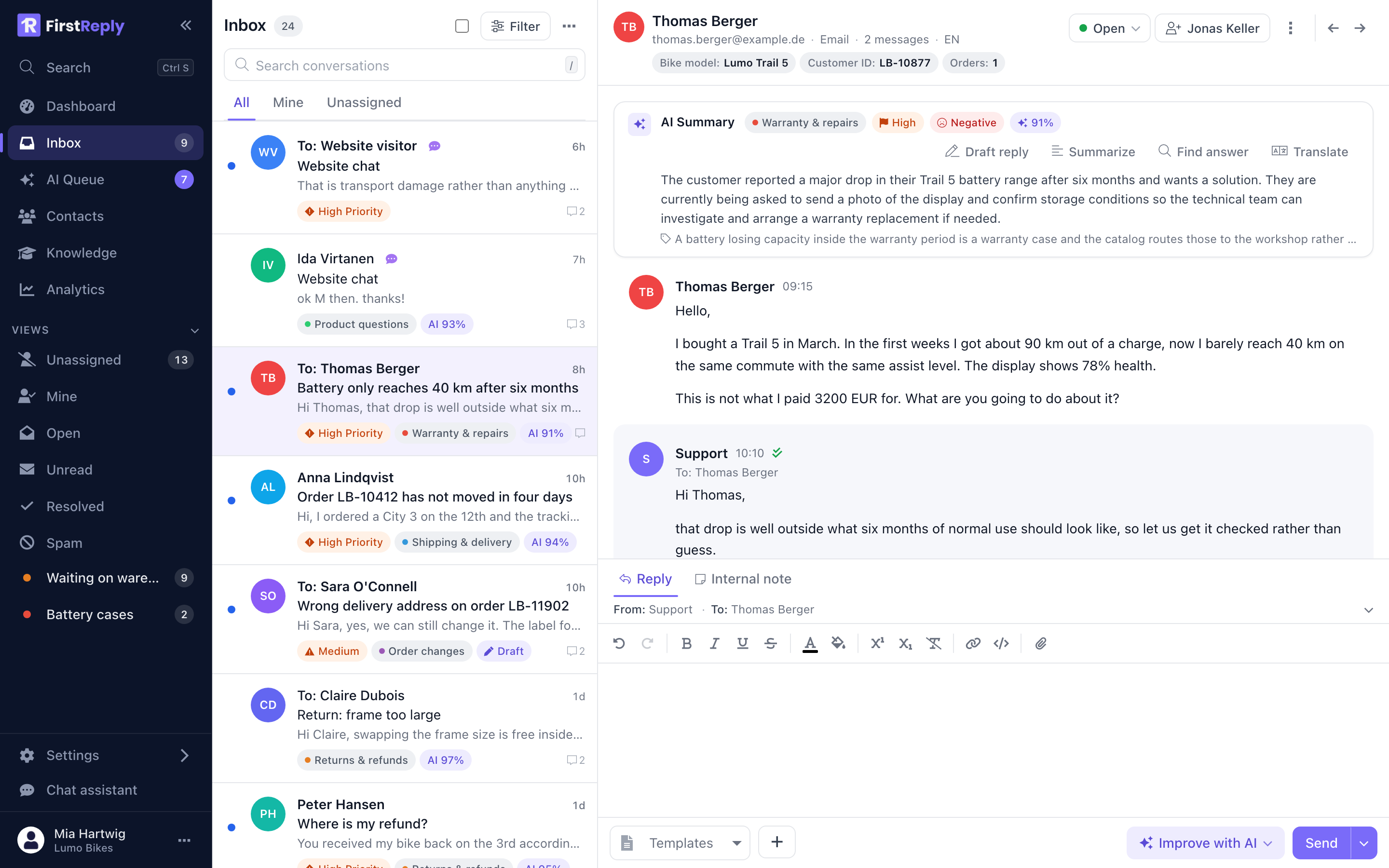
The header names the contact and, underneath, the facts you usually need before reading a word: their email address, the channel, the number of messages, and the language the conversation is in.
Next to those sit the contact fields your workspace defined — customer number, plan, product, whatever you configured under Custom fields. They are shown here so you do not have to open the contact to answer a simple question.
On the right of the header:
- The status control to close or reopen the conversation.
- The assignee, which you can change from the same control.
- A menu with priority, classification, spam, delete and merge actions.
- Arrows to step to the previous or next conversation in the list without going back.
The AI summary
Above the messages sits a summary the assistant wrote for this conversation. On a three-message thread it saves you little; on a long back-and-forth inherited from a colleague, it is the fastest way in.
The chips next to it repeat the classification, the priority, the sentiment the assistant read from the customer, and how confident it is in the classification. A confidence below your workspace's threshold means the assistant did not act on it automatically.
The row of actions under the summary is the AI toolbox:
Draft reply — writes an answer from the knowledge base and puts it in the editor without sending it.
Summarize — regenerates the summary, useful after a long new message.
Find answer — searches the knowledge base for passages relevant to this conversation and shows what it found, with sources. Use it when you want the facts rather than a written reply.
Translate — translates the conversation into your own language, and your reply back into the customer's.
The message history
Messages run oldest to newest. Incoming messages are plain, your team's replies are tinted, and each one names its author and time. A checkmark on an outgoing message means it was delivered.
Internal notes look different again: they are visible to your team only and never reach the customer. Use them for the context that does not belong in a reply ("called the warehouse, they will confirm tomorrow").
Writing a reply
The editor sits at the bottom with two tabs: Reply and Internal note. The Reply tab shows which inbox the message goes out from and to whom.
The formatting toolbar covers the usual: bold, italic, underline, strike, colour, super- and subscript, links, code and attachments. What you write is sent as HTML with a plain-text fallback, so it renders correctly in every mail client.
Templates — the button at the bottom left inserts a saved template. Templates carry placeholders like the contact's first name that are filled in when you insert them. See Templates.
Improve with AI — rewrites what you already typed: shorter, friendlier, more formal, or translated. It works on your draft rather than replacing it with a generated answer, which makes it useful even when you would never let the assistant answer by itself.
Send — sends and, with the dropdown next to it, optionally closes the conversation in the same step. Send and close is the right default for anything that does not obviously need a follow-up.
Customers who write in another language
The header names the language the customer writes in, and every message in another language than your team's carries a small language label. Click the label to switch that message between the original and its translation, or click the language in the header to do the same for the whole conversation. That choice is remembered.
You answer in your own language. When the customer's language differs from yours, a language button appears next to Improve with AI:
- Translate when sending is on by default. You press Send, the customer receives the reply in their language with your formatting intact. If the translation fails, nothing is sent. A reply you already wrote in the customer's language goes out untouched.
- Translate now and review puts the translation into the editor first, so you can check or adjust it. Undo brings your own text back.
The conversation keeps both versions: the message shows what the customer received, and its language label shows what you wrote.
Working with an AI draft
When a classification is set to draft only, the assistant prepares the answer
and stops. The conversation carries a Draft badge and appears in the AI Queue
under AI draft ready.
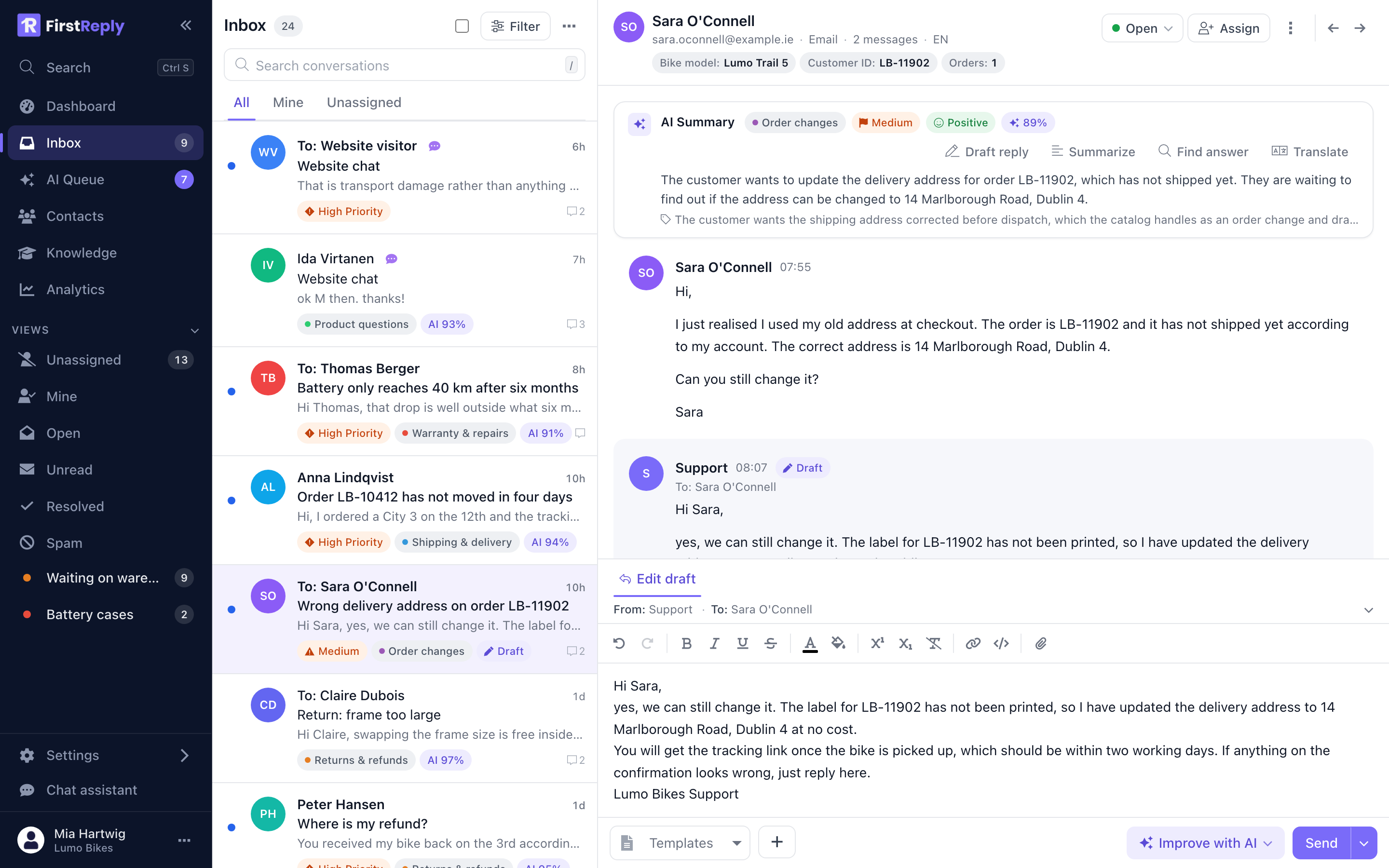
Open it, read the draft, edit what you want, send. Nothing goes out until a person presses Send, which is what makes drafting the safe way to introduce automation on a category you are not sure about yet.
Chat conversations
Website chat and WhatsApp conversations have no subject and much shorter messages, so they read as a chat rather than as mail.
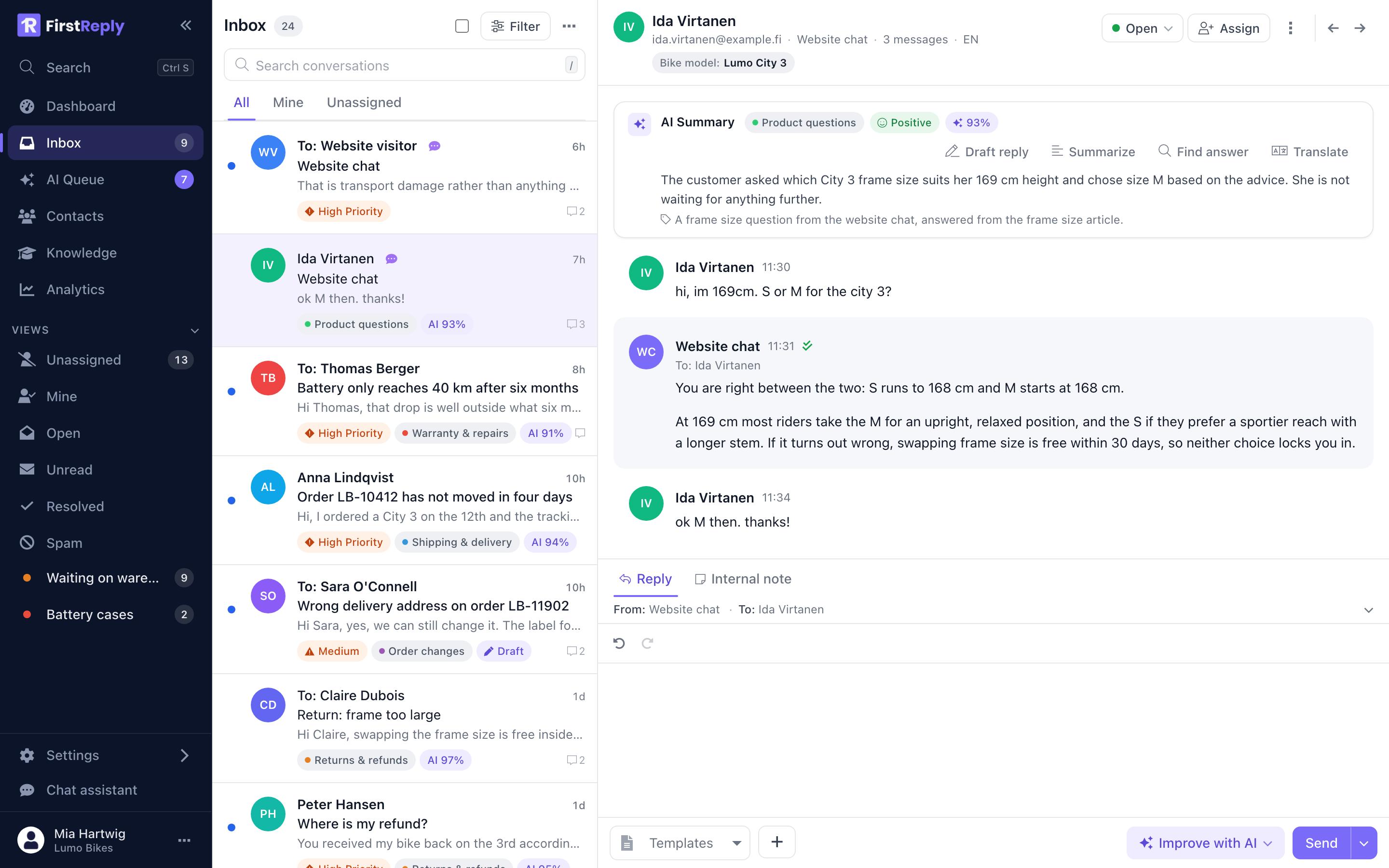
Everything else works the same: the same statuses, the same assignment, the same editor. When a visitor is anonymous, the widget asks for a name and email as soon as the conversation is handed to a human, and the contact is filled in from that.