Website chat
The website chat is a widget you paste onto your site. Visitors ask a question, the assistant answers from your knowledge base, and anything it cannot answer becomes a conversation in the inbox like any other.
It is the fastest channel to set up: there is nothing external to connect and no account to approve. Creating the inbox generates a public widget key, and the snippet is ready immediately.
Setting it up
Add an inbox of type Website chat under Settings → Configuration → Inboxes. FirstReply generates the widget key for you; it cannot be chosen or changed, which is what keeps it safe to publish.
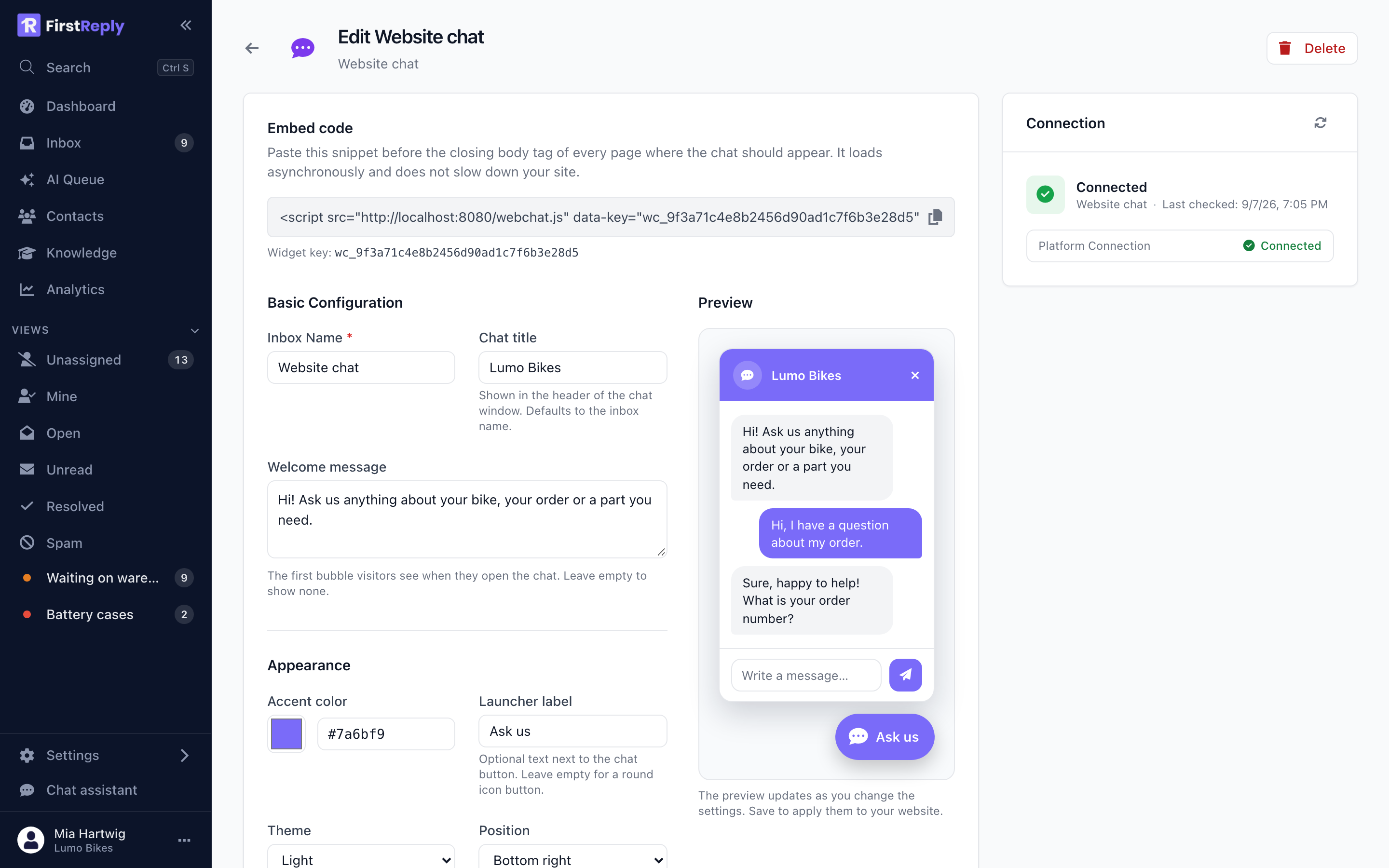
The embed snippet
The settings page shows the snippet to paste into your site, once, before the
closing </body> tag:
<script src="https://api.firstreply.ai/webchat.js" data-key="YOUR_WIDGET_KEY" async></script>
The widget is plain JavaScript with no dependencies and renders inside a shadow DOM, so it cannot collide with your site's CSS and your site's CSS cannot break it. It loads asynchronously and does not block page rendering.
Appearance
Title — the name at the top of the chat panel. Usually your company name.
Welcome message — the first thing a visitor sees when they open the widget. Make it an invitation to ask something specific rather than "How can I help you?", which invites "I have a question" and nothing more.
Colour — the accent colour of the launcher and of the visitor's own messages. Use your brand colour; the widget picks readable text colour for it automatically.
Launcher label — the text next to the launcher button. Leave it empty for a bubble with no label.
Theme — light or dark.
Position — bottom right or bottom left.
The preview on the settings page updates as you type, so you can see the result before saving.
Behaviour
Require contact details — when on, visitors give a name and email before they can write. It gives you a way to follow up on every conversation, at the cost of some people not starting one at all.
With it off, visitors chat anonymously and are only asked for their details when the conversation is handed to a human — which is when the details actually become necessary. That is the better default for most sites.
Allowed domains — a list of domains the widget may run on, one per line. The widget key is public by design, since it sits in your page source; the domain allowlist is what stops it being used from somebody else's site. Set it to your own domains before you go live.
How a conversation runs
- A visitor opens the widget and writes a message.
- The message arrives as a conversation on the website chat inbox.
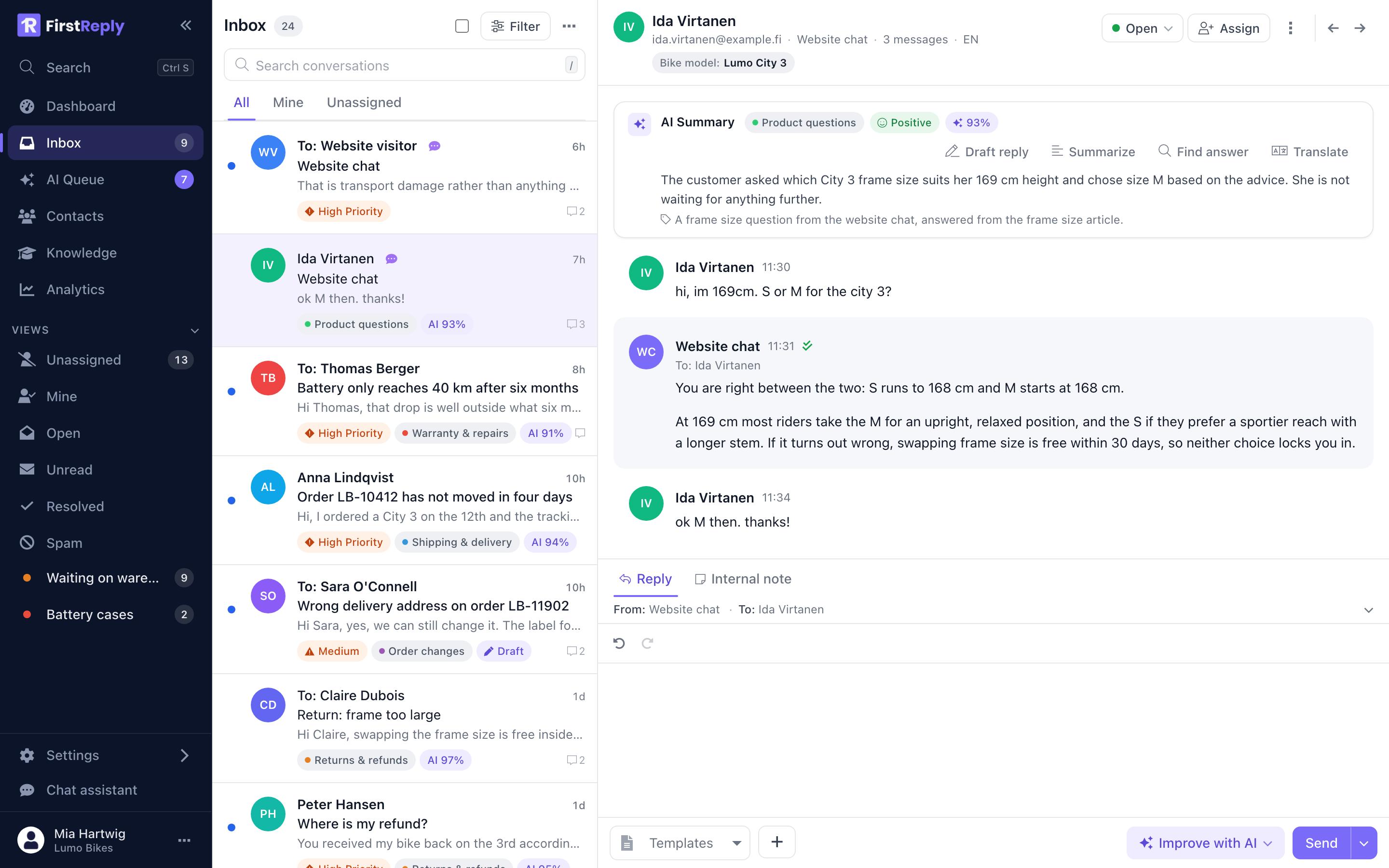
- The assistant answers from the knowledge base. Replies appear in the widget within a second or two.
- If it cannot answer, it says so and escalates: the conversation goes to high priority and, for an anonymous visitor, the widget asks for a name and an email so your team can reply.
- Your team answers from the inbox. The visitor sees the reply in the widget while the page is open, and by email afterwards if they left an address.
Website chat conversations are never classified into your categories: they are answered directly from the knowledge base. That keeps the response fast, which matters more in a live chat than in email.
Limits
Replies are delivered as plain text. Formatting from the editor is stripped, and attachments are not supported on this channel.
Security
- The widget key is public and read-only. It identifies which workspace the widget belongs to and nothing else; it cannot be used to read conversations.
- Each conversation gets its own signed token, so one visitor's session cannot reach another's.
- The chat endpoints accept requests only from the domains you allowlisted.
- Nothing about the visitor is collected beyond what they type and, if asked, the name and email they give.